> ## Documentation Index
> Fetch the complete documentation index at: https://app-guide.empara.io/llms.txt
> Use this file to discover all available pages before exploring further.
# Home Screen
> This page will walk you through the home screen features in the app
## Notices
The notice carousel is at the top of the app home screen. Swipe left or right to scroll through notices and tap or click them to get more information.
Notices are used to promote the most important features in your app and connect you with integrated offerings or solutions available to you based on your health plan or program. Notices may also be used to communicate important announcements or insights that you might want to take advantage of.
Notices usually include additional information on how to access a particular service and have call-to-action buttons such as tap to call, tap to message, or click to link out to an external websites or portals.
## Message Action Button
The button in the center of the home screen connects you with the messaging center. There, you have the option to chat with your AI assistant or message with your service team for more complex requests.
 ### BillAssist / Upload New Bill Button (optional)
In some cases, the center button is used to support our bill reduction service. Here you can upload a high-cost medical bill and take advantage of hospital discounts and negotiated discounts.
## Quicklinks
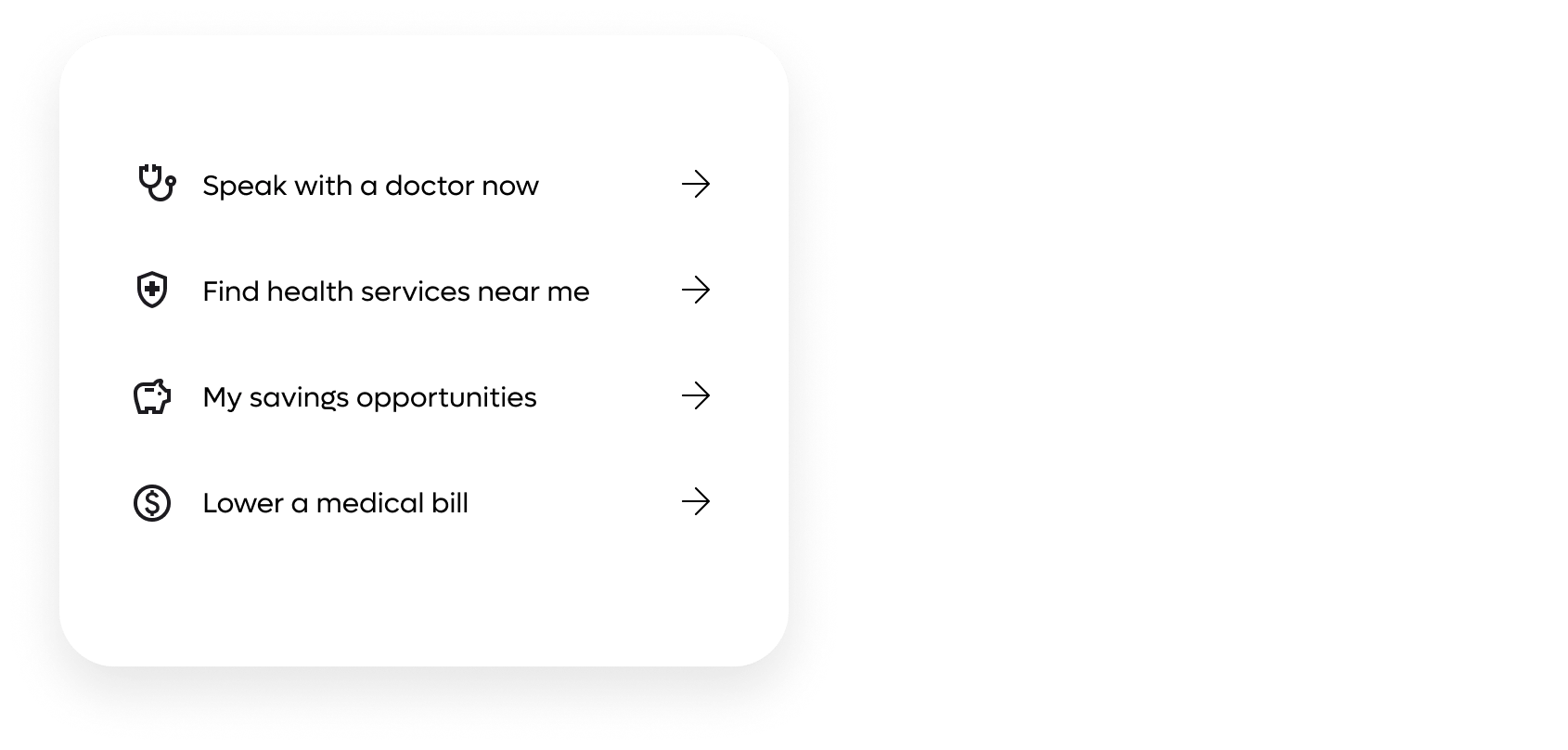
The bottom third of your home screen hosts a series of quicklinks. Quicklinks are designed to get you to the most important areas of your app with one tap. They may also link you to external portals or systems.
### BillAssist / Upload New Bill Button (optional)
In some cases, the center button is used to support our bill reduction service. Here you can upload a high-cost medical bill and take advantage of hospital discounts and negotiated discounts.
## Quicklinks
The bottom third of your home screen hosts a series of quicklinks. Quicklinks are designed to get you to the most important areas of your app with one tap. They may also link you to external portals or systems.
 ## Navigation Bar
On the mobile application, the navigation bar is at the bottom of your app screen. On a web browser, the navigation bar icons and options are the same, but the position shifts to the left of the screen.
## Navigation Bar
On the mobile application, the navigation bar is at the bottom of your app screen. On a web browser, the navigation bar icons and options are the same, but the position shifts to the left of the screen.
 **Home Icon**
The home icon that looks like a house brings you back to the home screen.
**Message Center Icon**
The chat bubble icon brings you to the app messaging center.
**AI Assistant Icon**
The sparkle icon brings you to your AI assistant.
**Benefits Wallet Icon**
The icon that looks like an ID card will bring you to your benefits wallet
**More Menu Icon**
The three-bar icon, sometimes referred to as the "hamburger" icon, opens a menu with more options. Here you can manage your account settings and set your preferred language. This is also where you log out of the application.
The More Options Menu hosts icons that bring you to other important sections, such as medical history, claims, prior authorizations, and BillAssist.
**Home Icon**
The home icon that looks like a house brings you back to the home screen.
**Message Center Icon**
The chat bubble icon brings you to the app messaging center.
**AI Assistant Icon**
The sparkle icon brings you to your AI assistant.
**Benefits Wallet Icon**
The icon that looks like an ID card will bring you to your benefits wallet
**More Menu Icon**
The three-bar icon, sometimes referred to as the "hamburger" icon, opens a menu with more options. Here you can manage your account settings and set your preferred language. This is also where you log out of the application.
The More Options Menu hosts icons that bring you to other important sections, such as medical history, claims, prior authorizations, and BillAssist.